
Documentation
Frequently asked questions (FAQ)
History
Donations
Installation
choco install ln
from a command prompt. Make sure you have chocolatey installed.
Installation
winget install HermannSchinagl.ln
from a command prompt. Make sure you have winget installed.
The documentation on options in the section below are sorted in alphabetical order.
| Normal linking |
Just for completeness: ln.exe can do the normal ln stuff too. ln sourcefile.txt destination.txt In the above example sourcefile.txt gets hard-linked to destination.txt ln sourcefile.txt dest_dir In the above example sourcefile.txt gets hard-linked to dest_dir\sourcefile.txt |
|||||||||||||||||||||||||||||||||||||||||||||||||||||||||||||||||||||||||||||||||||||||||||||||||||||||||||||||||||||||||||||||||||||||||||||||||||||||||||||||||||||||||||||||||||||||||||||||||||
|
|
||||||||||||||||||||||||||||||||||||||||||||||||||||||||||||||||||||||||||||||||||||||||||||||||||||||||||||||||||||||||||||||||||||||||||||||||||||||||||||||||||||||||||||||||||||||||||||||||||||
|
--absolute Absolute Symbolic Links |
The target of a symbolic link can either be
ln.exe by default tries to create relative target path names for symbolic links as long as this is possible, e.g the file and its target are on the same logical drive. Having relative symbolic link targets is much smarter especially when the target of links is in the same directory. If a symbolic link and its target are on different drives, ln.exe uses absolute pathnames. If the creation of absolute target pathnames should be forced use the --absolute option. ln --absolute --symbolic Sourcefile.txt Destination.txt In the above example Sourcefile.txt gets linked to Destination.txt with an absolute target path. ln --absolute --symbolic Sourcefile.txt DestinationDirectory In the above example a symbolic link DestinationDirectory\Sourcefile.txt gets linked to Sourcefile.txt with an absolute target path. ln --absolute --symbolic SourceDirectory DestinationDirectory In the above example a symbolic link directory SourceDirectory gets linked to DestinationDirectory with an absolute target path. ln --absolute --symbolic SourceDirectory DestinationDirectory\ In the above example a symbolic link directory DestinationDirectory\SourceDirectory gets linked to SourceDirectory with an absolute target path. A traling backslash is the trigger for this to work. |
|||||||||||||||||||||||||||||||||||||||||||||||||||||||||||||||||||||||||||||||||||||||||||||||||||||||||||||||||||||||||||||||||||||||||||||||||||||||||||||||||||||||||||||||||||||||||||||||||||
|
|
||||||||||||||||||||||||||||||||||||||||||||||||||||||||||||||||||||||||||||||||||||||||||||||||||||||||||||||||||||||||||||||||||||||||||||||||||||||||||||||||||||||||||||||||||||||||||||||||||||
|
--anchor Supply Anchor Paths |
This option can be used together with other options like --copy and it supplies a virtual path or an anchor to the e.g copy process, so that junctions and absolute symbolic links can be restored properly in the destination even if they would be outer junctions/symbolic link. Think of the following task to be solved:
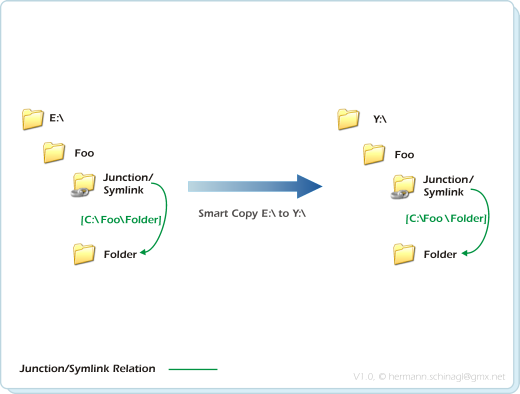
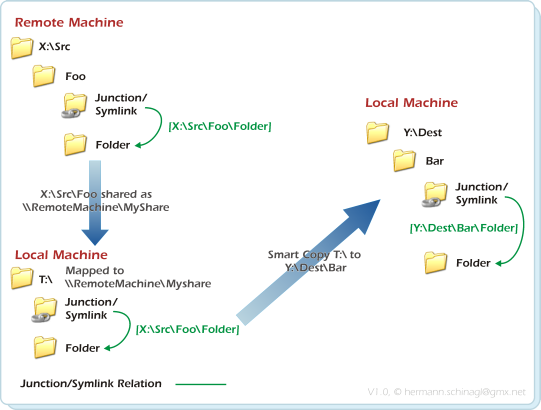
There are absolute junction/symbolic links in your structure, which point to c:\ but with respect to its new root e:\ all junctions pointing to c:\ are now outer junctions/symbolic link. A normal --copy would simply crop these junctions, which is unwanted, because the whole disk should be recovered as much as possible. The solution is to broaden the scope for ln.exe to decide if it is an outer or inner junction by supplying additional anchor path to the copy process. ln --anchor c:\ --destination c:\ --copy e:\ y:\
The above example supplies c:\ as additional anchor path and lets ln.exe assume that all
junctions and symbolic links below e:\, which point to some places below c:\ are inner junctions, and
thus are restored in the destination as junctions/symbolic links pointing to places below c:\ properly.
ln --anchor c:\ --destination c:\ --anchor d:\ --destination d:\ --anchor e:\ --destination e:\ --copy f:\ y:\ The order of --anchor and --destination in the above example is important: They build kind of pairs. Copying a full drive The full black magic on copying with permissions a whole drive also includes the --backup switch ln --backup --anchor c:\ --copy e:\ y:\Adding --backup also copies all permissions, streams and the like. Or you omit --backup and only use --keepsymlinkrelation. The --anchor options is also useful when working with snapshots, because snapshots can be mapped either as different drive or as UNC path. Both ways causing the problem of junctions within snapshots to be recognized as outer junctions and thus beeing cropped. Mirroring a drive If a system drive should be backuped regularly and data, which have been already copied in the run before, should not be copied, then go for: ln --backup --anchor c:\ --mirror e:\ y:\
If this should be done via snapshots, see Copying a whole drive via snapshots.
The above example does not use --destination. This means the inner junctions/symbolic links, which point to c: on the source now in the destination y: point to y:
See also the note on quotes. |
|||||||||||||||||||||||||||||||||||||||||||||||||||||||||||||||||||||||||||||||||||||||||||||||||||||||||||||||||||||||||||||||||||||||||||||||||||||||||||||||||||||||||||||||||||||||||||||||||||
|
--backup Backup Mode |
Using the Backup Mode ACLs aka Access Control Lists, which contain the security for Files, Folders, Junctions or SymbolicLinks, and Encrypted Files are also copied. ln.exe thus copies
The --backup switch is a modifier to all other operations like e.g --copy, --mirror or --delorean. ln --backup --copy x:\SourcePath x:\DestinationPathAll files with all the above mentioned attributes are copied from x:\SourcePath to x:\DestinationPath The --backup mode automatically enables the --keepsymlinkrelation modifier. |
|||||||||||||||||||||||||||||||||||||||||||||||||||||||||||||||||||||||||||||||||||||||||||||||||||||||||||||||||||||||||||||||||||||||||||||||||||||||||||||||||||||||||||||||||||||||||||||||||||
|
--copy Smart Copy |
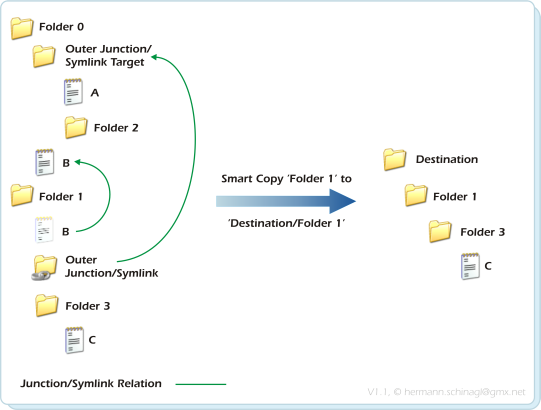
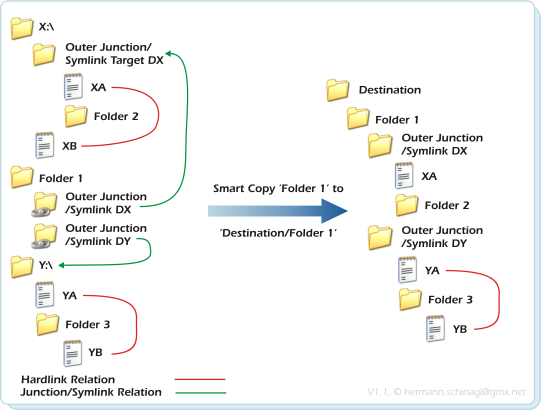
Smart Copy basically creates a copy of the directory structure from the source location to the destination, but it preserves the inner hardlink structure and inner junction/symbolic link relations of the source, and recreates this inner hardlink structure and inner junction/symbolic link relation at the destination location: With hardlinks it behaves as follows: 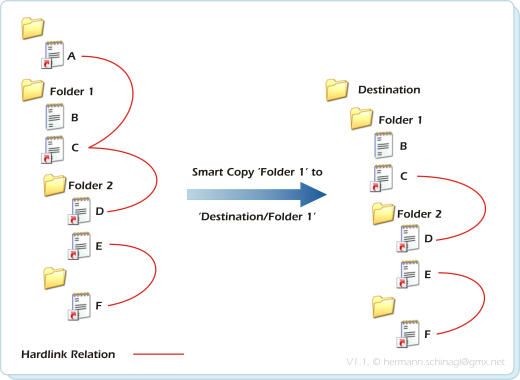
By closely looking at the above picture one can find three different types of files:
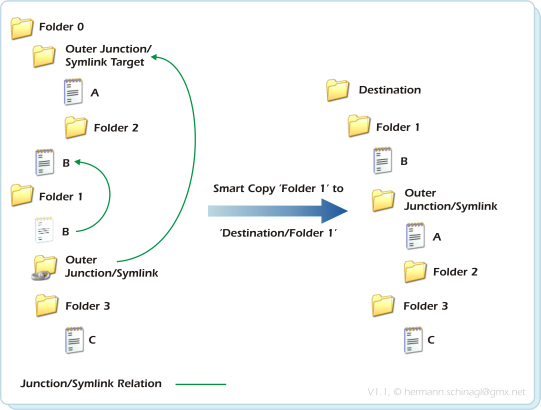
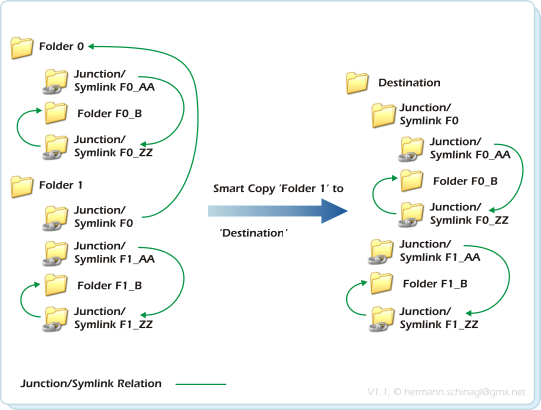
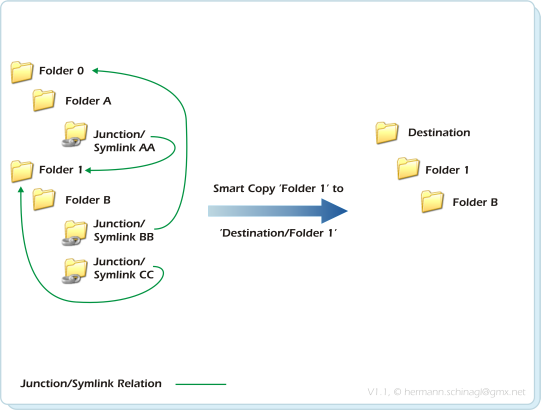
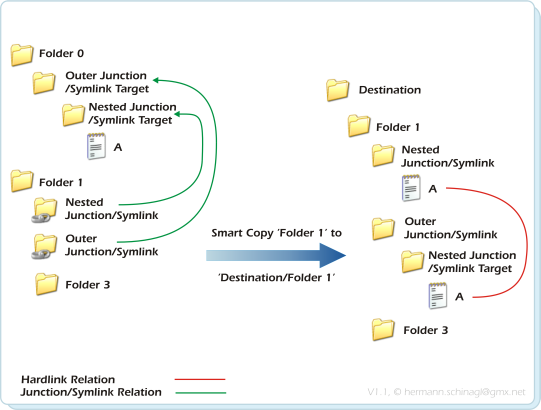
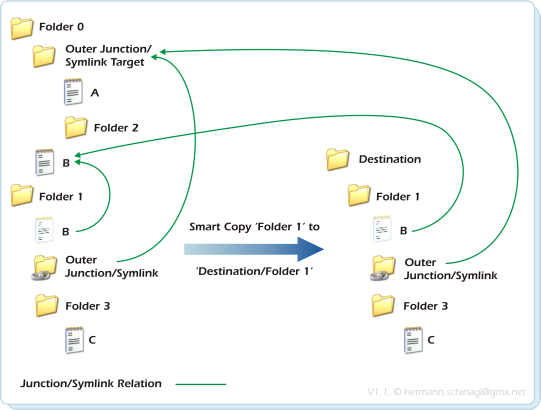
With junctions or symbolic link directories the default behaviour during smartcopy is as follows: 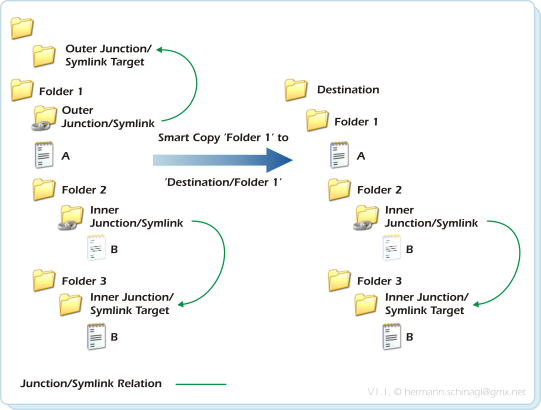
By closely looking at the above picture one can find three different types of folders/junctions:
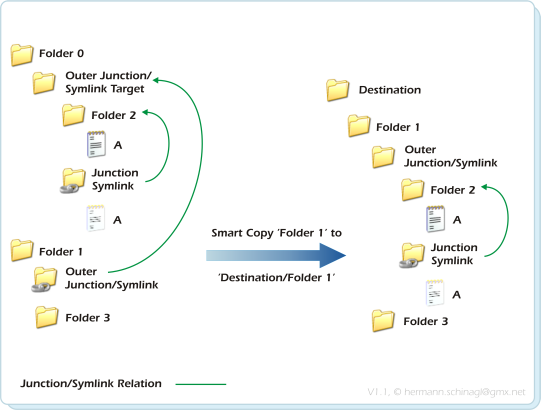
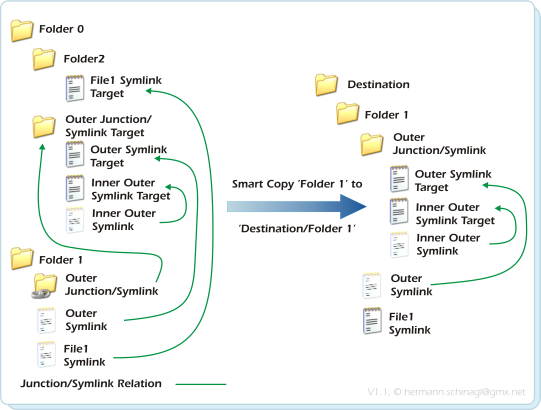
Symbolic Links to files behave as follows during Smart Copy: 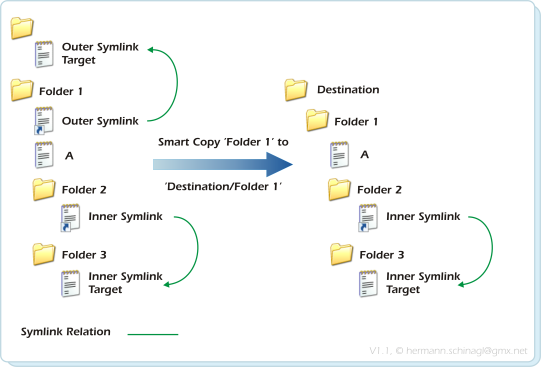
By closely looking at the above picture one can find three different types of files/symbolic links:
e.g.: ln --copy x:\dir\dir2 y:\dir\newdirIn the above example the directories and files below x:\dir\dir2 are copied to y:\dir\newdir, and all hardlinks/junctions/symbolic links within x:\dir\dir2 are copied/tied to their new locations under y:\dir\newdir. The --copy operation only copies if the files in the destination are either not there, or if the files in the source are newer. Otherwise the item is skipped. See also the note on quotes. If you use ln.exe as a backup tool with the --copy option, please make sure you test that everything is copied. I tested ln --copy many times, and had no problems, but when it comes to backing up data, one has to be careful. Smart Copy is a must if e.g. the whole content of a hard disk, which has lots of hardlinks/junctions/symbolic links, should be copied to another hard disk. During the Smart Copy operation empty folders get copied too and the time stamps of folders/junctions/symbolic links are also restored at the corresponding destination locations. Because Smart Copy creates inner hardlinks/junctions/symbolic links, this feature is only available on NTFS volumes. Smart Copy also processes all available alternative NTFS streams, EA Records, Sparse Files of a file. To also copy the ACLs, see the Backup Mode OutputSee Output among Delorean Copy for a detailed description of Smart Copies output. Shell Integration The Copy or Smart Copy functionality is also available via Link Shell Extension |
|||||||||||||||||||||||||||||||||||||||||||||||||||||||||||||||||||||||||||||||||||||||||||||||||||||||||||||||||||||||||||||||||||||||||||||||||||||||||||||||||||||||||||||||||||||||||||||||||||
|
--crop Crop/Unroll/Splice Outer Junctions/ Symbolic Links |
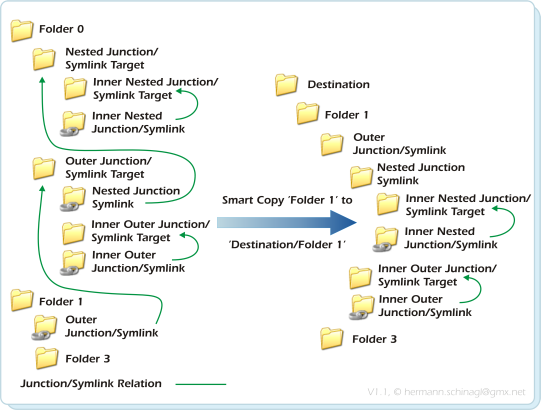
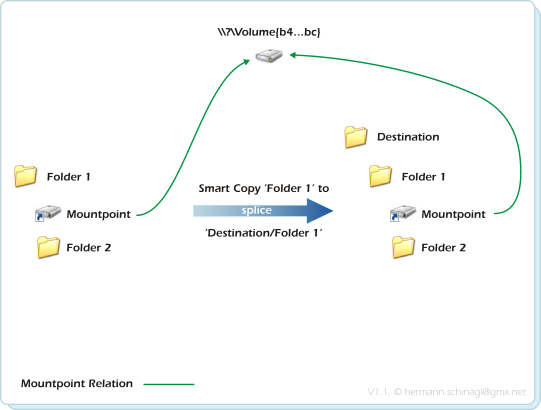
During SmartCopy, Smart Mirror, Delorean Copy and Clone so called Outer Junctions/Symlink directories may need processing. There are 3 different ways to deal with those Outer Junctions/Symlink directories:
|
|||||||||||||||||||||||||||||||||||||||||||||||||||||||||||||||||||||||||||||||||||||||||||||||||||||||||||||||||||||||||||||||||||||||||||||||||||||||||||||||||||||||||||||||||||||||||||||||||||
|
--delete DeLorean Delete |
In general deleting files seems so simple, but when taking a closer look at the delorean copy use case, things get interesting:
Creating and keeping many Delorean Copies in a Delorean Set is something which is fairly simple, and even when it comes to deleting a specific Delorean Copy from a Delorean Set it is easy. Simply press delete in Explorer, or use the --delete option from ln.exe: 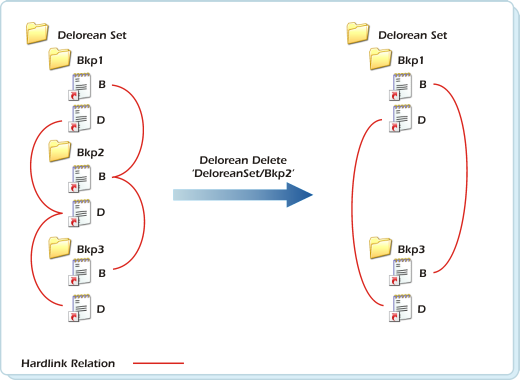
ln --delete x:\Bkp2 In the above example the directories and files below x:\Bkp2 are deleted. But wait! It is that easy if a Delorean Copy contains no files with ReadOnly attributes. Otherwise it's getting sophisticated: 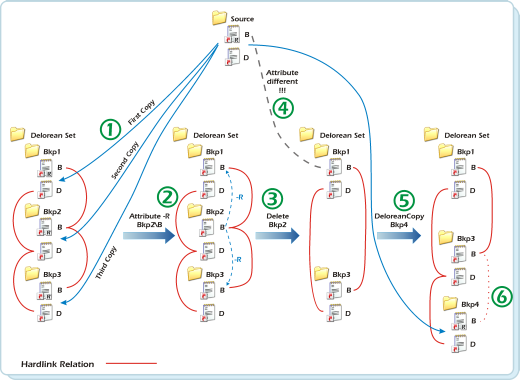
|
|||||||||||||||||||||||||||||||||||||||||||||||||||||||||||||||||||||||||||||||||||||||||||||||||||||||||||||||||||||||||||||||||||||||||||||||||||||||||||||||||||||||||||||||||||||||||||||||||||
|
--delorean DeLorean Copy |
DeLorean Copy is a way of creating incremental backups by using a combination of Hardlink Clone and SmartMirror. The following picture gives an overview of what DeLorean Copy is about 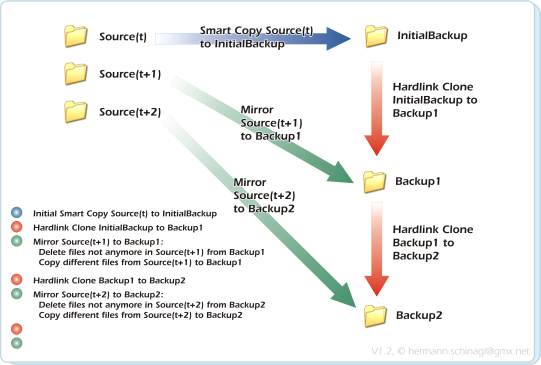
In general a DeLorean Copy has 3 principals: Source(t), InitialBackup and Backup(n), where t represents time and n the number of backups.
With completion of this first round Backup1 contains the first lean and mean copy of Source only consisting of either hardlinks to InitialBackup, or of copied files if there was the need to copy them over from Source(t+1) because they were newer under Source(t+1). The point is that all files in Backup1 are transparently accessible, but little space is used, because not all files in the Source(t+1) changed, so that there was only the need to effectively copy over a few files from Source(t+1) to Backup1. The time stamps for LastWriteTime, CreationTime and LastAccessTime of files/folders/junctions/symbolic links are also restored at the corresponding destination locations during DeloreanCopy. Different items means: Either the file size has changed, or the LastWriteTime has changed. This can be repeated on and on. The second round would be using Source, Backup1 and Backup2 for DeLorean Copy:
A real word example looks like this: ln --copy x:\dir\Source x:\dir\InitialBackupThis creates the initial Backup as shown above in Phase 1 ln --delorean x:\dir\Source x:\dir\InitialBackup x:\dir\Backup1 This command does the first round of DeLorean copy as shown above in Phase 2 and Phase 3 creating a backup. ln --delorean x:\dir\Source x:\dir\Backup1 x:\dir\Backup2This command creates another set of incremental DeLorean copy as shown above in Phase 2 and Phase 3 creating another backup. See also the note on quotes. LoggingThe logging generated by DeLorean Copy/Smart Copy/Smart Clone/Smart Mirror looks like e.g.: -f c:\backup\test\deleteme.dat =d c:\backup\test\directorygone +f c:\data\test\1.dat +f c:\data\foo\3.dat *h c:\data\foo\Hardlink of 3.dat *h c:\data\foo\Another Hardlink of 3.dat .h c:\data\already\x.dat *h c:\data\already\Hardlink of x.dat ~f c:\data\failed\DidntMatch--splice.txt !?f (0x00000002) c:\data\failed\AccessDenied.txt
Delorean Copy logs each action it did, and prefixes two characters
to each item which it processed for each line of output. The first column of the output
contains the Operation which was performed, and the second column specifies the
Type of item which was processed.
Statistics After DeLorean Copy is finished it displays a statistics like this:
The statistics of DeLorean Copy only counts the operations which are performed during the
Mirror phase between Source and Backup(n+1). The operations which are performed during
cloning between Backup(n) and Backup(n+1) are not counted in the final DeLorean Copy statistics. Total: The total number of items as they were found under the Source. Total is the sum of all other columns but the Removed column. Copied:
Linked:
Skipped:
Removed:
Failed:
Overall:
Time used up for the whole DeLorean Copy including the Clone from
Backup(n) to Backup(n+1) and the Mirror from Source to Backup(n+1) Clone: Time used up for the Clone from Backup(n) to Backup(n+1) Mirror: Time used up for the Mirror from Source to Backup(n+1) Limitations It is little known, but NTFS has a limit to create a maximum of 1023 hardlinks to one file. For DeLorean Copy this means that it will display an error message if this limit is exceeded, because exceeding this limit means loss of data among the most recent backup sets: Delorean Copy FAILED! The NTFS link limit of 1023 has been exceeded for: The reason for exceeding this limit could either be, that there have been more than 1023 backup sets but no hardlinks within the Source, or there are hardlinks within the Source and less than 1023 backup sets. See also The filters of --includeXXX or --excludeXXX are applied in the source and the destination location Shell Integration DeLorean Copy functionality is also available via Link Shell Extension Anchor and DestinationDeLorean Copy might need --anchor and/or --destination if there are inner junctions / symbolic links among the source and the source dir is not referenced via its native name (e.g. X:\path ), but via UNC Shares or GLOBALROOT / Volumeguid due to operation via snapshotservice |
|||||||||||||||||||||||||||||||||||||||||||||||||||||||||||||||||||||||||||||||||||||||||||||||||||||||||||||||||||||||||||||||||||||||||||||||||||||||||||||||||||||||||||||||||||||||||||||||||||
|
|
||||||||||||||||||||||||||||||||||||||||||||||||||||||||||||||||||||||||||||||||||||||||||||||||||||||||||||||||||||||||||||||||||||||||||||||||||||||||||||||||||||||||||||||||||||||||||||||||||||
|
--destination Specify Destination |
In general ln.exe operates on source/target pairs. The default pair is always provided via e.g. --anchor AnchorDir provides an extra pair, but without --destination it uses the current target as second part of the pair .e.g --anchor AnchorDir --copy SourceDir TargetDir creates two pairs
--anchor AnchorDir --Destination DestinationDir --copy SourceDir TargetDir so that the pairs now are
The --destination option can only be used in combination with the
--source option, or the --anchor option |
|||||||||||||||||||||||||||||||||||||||||||||||||||||||||||||||||||||||||||||||||||||||||||||||||||||||||||||||||||||||||||||||||||||||||||||||||||||||||||||||||||||||||||||||||||||||||||||||||||
|
|
||||||||||||||||||||||||||||||||||||||||||||||||||||||||||||||||||||||||||||||||||||||||||||||||||||||||||||||||||||||||||||||||||||||||||||||||||||||||||||||||||||||||||||||||||||||||||||||||||||
|
--dupemerge On the fly Dupemerge |
Smart Copy, Smart Mirror and SmartClone rely on finding the hardlink relations by enumerating the unique file-index attribute of each file. But there might be more equal files below a given path, some of them probably not hardlinked. When issuing the --dupemerge option ln.exe does not only rely on the file-indices, but also creates incremental hash sums on all files, so that it finds additional not yet hardlinked dupes and hardlinks them in the destination: 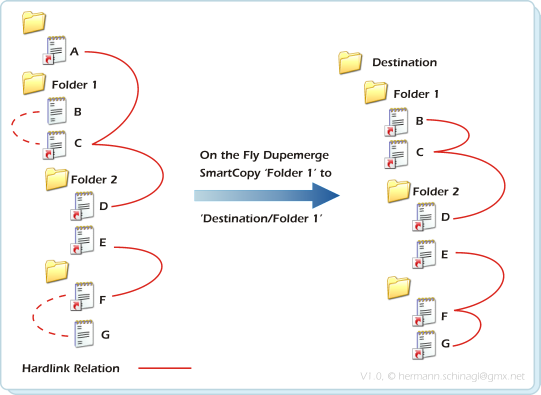
e.g.: ln --dupemerge --copy Folder1 Destination\Folder1 In the above example the directory Folder1 is searched for dupes and copied/hardlinked to destination. The files A, C, D are already hardlinked in the source, but B is not, even if it is the same as A,C,D. Similar situation with E,F, which are already hardlinked, but G is the same as E,F but not hardlinked. In the destination all equal files are hardlinked: There is a dupel B,C,D and a dupel E,F,G. A was omitted as in normal Smartcopy, because it is out of the source scope. Broken NTFS implementations
The --dupemerge option is also of help, when data from a drive should be copied which has a broken NTFS implementation. So the SMB or CIFS implementation of such drives is broken, and this means one can not detect already existing hardlinks by reading all file-indices from all files and searching for equal indices. ln.exe has a built in sanity check on file-indices, and once it finds files with same file-index but different size, it assumes the view on this NTFS drive is broken, and invalidates all file-indices, thus assuming no hardlinks are on this drive. In such a situation --dupemerge is of great help because it scans the given path and calculates incremental MD5 hash sums for all files. This enables ln.exe to detect dupes, and hardlink equal files in the destination.
On the fly Dupemerge can take a while and ln.exe prints out a warning, that it entered the On the Fly Dupemerge mode. See also the note on quotes. |
|||||||||||||||||||||||||||||||||||||||||||||||||||||||||||||||||||||||||||||||||||||||||||||||||||||||||||||||||||||||||||||||||||||||||||||||||||||||||||||||||||||||||||||||||||||||||||||||||||
|
--enum Enum hardlinks |
Sometimes it is convenient to find out which files are linked together, because hardlinked files might be spread around a NTFS volume. This is somehow the inverse hardlink functionality and it can be invoked as follows. ln --enum x:\path In the above example files below path are searched, and the files which are hardlinked are printed out. The --enum option first prints so called saturated and afterwards unsaturated hardlinks. For saturated hardlinks the number of files found below path matches the hardlink reference count of these files, but unsaturated hardlinks have a reference count greater than the number found below path. |
|||||||||||||||||||||||||||||||||||||||||||||||||||||||||||||||||||||||||||||||||||||||||||||||||||||||||||||||||||||||||||||||||||||||||||||||||||||||||||||||||||||||||||||||||||||||||||||||||||
|
|
||||||||||||||||||||||||||||||||||||||||||||||||||||||||||||||||||||||||||||||||||||||||||||||||||||||||||||||||||||||||||||||||||||||||||||||||||||||||||||||||||||||||||||||||||||||||||||||||||||
|
--exclude Exclude files via wildcards |
In certain situations not all files below a path should be used in Smart Copy, Smart Mirror, Delorean Copy or Clone. To accomplish this ln.exe can be run with wildcards specified to exclude certain files. ln --exclude *.ocx --exclude *.dll --delorean c:\source d:\b\dest d:\b\bk1 Basically any arbitrary wildcard expressions can be used, because the wildcard expressions are translated into a regular expression. This means that e.g *file*.ext*.* is also a valid wildcard expression for --exclude. Sometimes it is necessary to just exclude certain files along a given path: ln --exclude "*\\Res\\*\\Logfile.t*" --copy c:\source d:\b\destThe above example excludes all files Logfile.* from all directories which have \Res\ in it. This option supports taking its arguments from file. ln --exclude @List.txt --copy c:\source d:\b\dest
The above example references to a file List.txt, which on every line contains a matching pattern. e.g.
|
|||||||||||||||||||||||||||||||||||||||||||||||||||||||||||||||||||||||||||||||||||||||||||||||||||||||||||||||||||||||||||||||||||||||||||||||||||||||||||||||||||||||||||||||||||||||||||||||||||
|
|
||||||||||||||||||||||||||||||||||||||||||||||||||||||||||||||||||||||||||||||||||||||||||||||||||||||||||||||||||||||||||||||||||||||||||||||||||||||||||||||||||||||||||||||||||||||||||||||||||||
|
--excludedir Exclude directories via wildcards |
In certain situations not all directories should be used in Smart Copy, Smart Mirror, Delorean Copy or Clone. To accomplish this ln.exe can be run with wildcards to exclude certain directories. ln --excludedir *test* --delorean c:\source d:\b\dest d:\b\bk1 Basically any arbitrary wildcard expressions can be used, because the wildcard expressions are translated into a regular expression. This means that e.g *file*.ext*.* is also a valid wildcard expression for --excludedir. Wildcard expression shall not span more than one directory level: e.g. *fotos\\temp* will not succeed. This option supports taking its arguments from file. ln --excludedir @List.txt --copy c:\source d:\b\dest
The above example references to a file List.txt, which on every line contains a matching pattern. e.g.
|
|||||||||||||||||||||||||||||||||||||||||||||||||||||||||||||||||||||||||||||||||||||||||||||||||||||||||||||||||||||||||||||||||||||||||||||||||||||||||||||||||||||||||||||||||||||||||||||||||||
|
|
||||||||||||||||||||||||||||||||||||||||||||||||||||||||||||||||||||||||||||||||||||||||||||||||||||||||||||||||||||||||||||||||||||||||||||||||||||||||||||||||||||||||||||||||||||||||||||||||||||
|
--excluderegexp Exclude files via regular expressions |
In certain situations not all files below a path should be used in Smart Copy, Smart Mirror, Delorean Copy or Clone. To accomplish this ln.exe can be run with regular expressions specified to exclude certain files. ln --excluderegexp "[a-z]*" --copy c:\source d:\b\dest The regular expressions used must conform to POSIX 1003.2 extended RE (ERE) syntax . They are not casesensitiv. The regular expression specified under --excluderegexp is applied to the whole path with the filename. This option supports taking its arguments from file. ln --excluderegexp @List.txt --copy c:\source d:\b\dest
The above example references to a file List.txt, which on every line contains a regular expression. e.g.
|
|||||||||||||||||||||||||||||||||||||||||||||||||||||||||||||||||||||||||||||||||||||||||||||||||||||||||||||||||||||||||||||||||||||||||||||||||||||||||||||||||||||||||||||||||||||||||||||||||||
|
|
||||||||||||||||||||||||||||||||||||||||||||||||||||||||||||||||||||||||||||||||||||||||||||||||||||||||||||||||||||||||||||||||||||||||||||||||||||||||||||||||||||||||||||||||||||||||||||||||||||
|
--excluderegexpdir Exclude directories via regular expressions |
In certain situations not all directories should be used with Smart Copy, Smart Mirror, Delorean Copy or Clone. To accomplish this ln.exe can be run with regular expressions to exclude certain directories. ln --excluderegexpdir "[a-z]*" --delorean c:\source d:\b\dest d:\b\bk1 The regular expressions used must conform to POSIX 1003.2 extended RE (ERE) syntax . They are not casesensitiv. The regular expression specified under --excluderegexpdir is applied to the whole path with the filename. This option supports taking its arguments from file. ln --excluderegexpdir @List.txt --copy c:\source d:\b\dest
The above example references to a file List.txt, which on every line contains a regular expression. e.g.
|
|||||||||||||||||||||||||||||||||||||||||||||||||||||||||||||||||||||||||||||||||||||||||||||||||||||||||||||||||||||||||||||||||||||||||||||||||||||||||||||||||||||||||||||||||||||||||||||||||||
|
|
||||||||||||||||||||||||||||||||||||||||||||||||||||||||||||||||||||||||||||||||||||||||||||||||||||||||||||||||||||||||||||||||||||||||||||||||||||||||||||||||||||||||||||||||||||||||||||||||||||
|
--follow follow based on wildcards |
The delete option normally stops on reparse boundaries, but in certain cases it is useful to force the --delete option to follow pathes, which match wildcards ln --follow "Outer*" --delete "Folder 1" 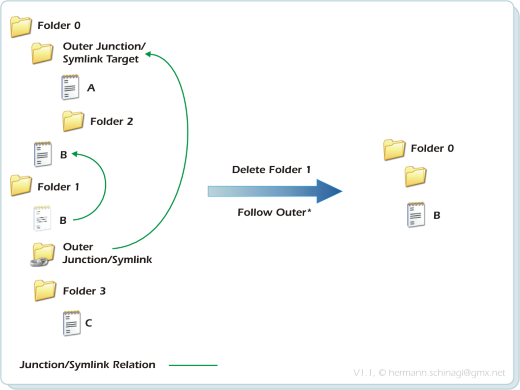
This option supports taking its arguments from file. ln --follow @List.txt --delete MyPath
The above example references to a file List.txt, which on every line contains a matching pattern. e.g.
|
|||||||||||||||||||||||||||||||||||||||||||||||||||||||||||||||||||||||||||||||||||||||||||||||||||||||||||||||||||||||||||||||||||||||||||||||||||||||||||||||||||||||||||||||||||||||||||||||||||
|
|
||||||||||||||||||||||||||||||||||||||||||||||||||||||||||||||||||||||||||||||||||||||||||||||||||||||||||||||||||||||||||||||||||||||||||||||||||||||||||||||||||||||||||||||||||||||||||||||||||||
|
--followregexp follow based on regular expressions |
The delete option normally stops on reparse boundaries, but in certain cases it is useful to force the --delete option to follow pathes, which match regular expressions ln --followregexpr "[a-z]*" --delete "Folder 1" The regular expressions used must conform to POSIX 1003.2 extended RE (ERE) syntax . They are not casesensitiv. The regular expression specified under --followregexp is applied to the whole path with the filename. This option supports taking its arguments from file. ln --followregexpr @List.txt --delete MyPath
The above example references to a file List.txt, which on every line contains a regular expression. e.g.
|
|||||||||||||||||||||||||||||||||||||||||||||||||||||||||||||||||||||||||||||||||||||||||||||||||||||||||||||||||||||||||||||||||||||||||||||||||||||||||||||||||||||||||||||||||||||||||||||||||||
|
|
||||||||||||||||||||||||||||||||||||||||||||||||||||||||||||||||||||||||||||||||||||||||||||||||||||||||||||||||||||||||||||||||||||||||||||||||||||||||||||||||||||||||||||||||||||||||||||||||||||
|
--include Include files via wildcards |
To selectively run Smart Copy, Smart Mirror, Delorean Copy or Clone on a certain set of files, the --include option can be used with wildcards. ln --include *.ocx --include *.dll --delorean c:\source d:\b\dest d:\b\bk1 Basically any arbitrary wildcard expressions can be used, because the wildcard expressions are translated into a regular expression. This means that e.g *file*.ext*.* is also a valid wildcard expression for --include. Sometimes it is necessary to just include certain files along a given path: ln --include "*\\Res\\*\\Logfile.t*" --copy c:\source d:\b\destThe above example includes all files Logfile.* from all directories which have \Res\ in it. This option supports taking its arguments from file. ln --include @List.txt --copy c:\source d:\b\dest
The above example references to a file List.txt, which on every line contains a matching pattern. e.g.
|
|||||||||||||||||||||||||||||||||||||||||||||||||||||||||||||||||||||||||||||||||||||||||||||||||||||||||||||||||||||||||||||||||||||||||||||||||||||||||||||||||||||||||||||||||||||||||||||||||||
|
|
||||||||||||||||||||||||||||||||||||||||||||||||||||||||||||||||||||||||||||||||||||||||||||||||||||||||||||||||||||||||||||||||||||||||||||||||||||||||||||||||||||||||||||||||||||||||||||||||||||
|
--includedir Include directories via wildcards |
To selectivley run Smart Copy, Smart Mirror, Delorean Copy or Clone on a certain set of directories, the --includedir option can be used with wildcards. ln --includedir *test --delorean c:\source d:\b\dest d:\b\bk1 Basically any arbitrary wildcard expressions can be used, because the wildcard expressions are translated into a regular expression. This means that e.g *ub?older* is also a valid wildcard expression for --includedir. Wildcard expression shall not span more than one directory level: e.g. *fotos\\temp* will not succeed This option supports taking its arguments from file. ln --includedir @List.txt --copy c:\source d:\b\dest
The above example references to a file List.txt, which on every line contains a matching pattern. e.g.
|
|||||||||||||||||||||||||||||||||||||||||||||||||||||||||||||||||||||||||||||||||||||||||||||||||||||||||||||||||||||||||||||||||||||||||||||||||||||||||||||||||||||||||||||||||||||||||||||||||||
|
|
||||||||||||||||||||||||||||||||||||||||||||||||||||||||||||||||||||||||||||||||||||||||||||||||||||||||||||||||||||||||||||||||||||||||||||||||||||||||||||||||||||||||||||||||||||||||||||||||||||
|
--includeregexp Include files via regular expressions |
To selectively run Smart Copy, Smart Mirror, Delorean Copy or Clone on a certain set of files, the --includeregexp option can be used with regular expressions specified to include certain files. ln --includeregexp "[a-z]*" --copy c:\source d:\b\dest The regular expressions used must conform to POSIX 1003.2 extended RE (ERE) syntax . They are not casesensitiv. The regular expression specified under --includeregexp is applied to the whole path with the filename. This option supports taking its arguments from file. ln --includeregexp @List.txt --copy c:\source d:\b\dest
The above example references to a file List.txt, which on every line contains a regular expression. e.g.
|
|||||||||||||||||||||||||||||||||||||||||||||||||||||||||||||||||||||||||||||||||||||||||||||||||||||||||||||||||||||||||||||||||||||||||||||||||||||||||||||||||||||||||||||||||||||||||||||||||||
|
|
||||||||||||||||||||||||||||||||||||||||||||||||||||||||||||||||||||||||||||||||||||||||||||||||||||||||||||||||||||||||||||||||||||||||||||||||||||||||||||||||||||||||||||||||||||||||||||||||||||
|
--includeregexpdir Include directories via regular expressions |
To selectively run Smart Copy, Smart Mirror, Delorean Copy or Clone on a certain set of directories, the --includeregexpdir option can be used with regular expressions to include certain directories. ln --includeregexpdir "[a-z]*" --delorean c:\source d:\b\dest d:\b\bk1 The regular expressions used must conform to POSIX 1003.2 extended RE (ERE) syntax . They are not casesensitiv. The regular expression specified under --includeregexpdir is applied to the whole path with the filename. This option supports taking its arguments from file. ln --includeregexpdir @List.txt --copy c:\source d:\b\dest
The above example references to a file List.txt, which on every line contains a regular expression. e.g.
|
|||||||||||||||||||||||||||||||||||||||||||||||||||||||||||||||||||||||||||||||||||||||||||||||||||||||||||||||||||||||||||||||||||||||||||||||||||||||||||||||||||||||||||||||||||||||||||||||||||
|
|
||||||||||||||||||||||||||||||||||||||||||||||||||||||||||||||||||||||||||||||||||||||||||||||||||||||||||||||||||||||||||||||||||||||||||||||||||||||||||||||||||||||||||||||||||||||||||||||||||||
|
--json Print output in JSON |
To postprocess the results of ln.exe the whole output can be switched to Json. ln --json --copy x:\source d:\destination The output looks like this { "Statistics": [ { "Items": [ { "op": "#", "er": 0, "ty": "s", "pa": "D:\\path\\ln64_104.exe" } ], "Summary": { "Total": { "Folder": 1, "File": 0, "Junction": 0, "Mountpoint": 0, "ReparseUnknown": 0, "Symlink": 1, "Byte": 0 }, "Copied": { "Folder": 0, "File": 0, "Junction": "-1", "Mountpoint": "-1", "ReparseUnknown": "-1", "Symlink": "-1", "Byte": 0 }, "Linked": { "Folder": "-1", "File": 0, "Junction": 0, "Mountpoint": 0, "ReparseUnknown": 0, "Symlink": 0, "Byte": 0 }, "Skipped": { "Folder": 0, "File": 0, "Junction": 0, "Mountpoint": 0, "ReparseUnknown": 0, "Symlink": 0, "Byte": 0 }, "Excluded": { "Folder": 0, "File": 0, "Junction": 0, "Mountpoint": 0, "ReparseUnknown": 0, "Symlink": 1, "Byte": 0 }, "Failed": { "Folder": 0, "File": 0, "Junction": 0, "Mountpoint": 0, "ReparseUnknown": 0, "Symlink": 0, "Byte": 0 } }, "Times": { "Overall": 191267 } } ] } |
|||||||||||||||||||||||||||||||||||||||||||||||||||||||||||||||||||||||||||||||||||||||||||||||||||||||||||||||||||||||||||||||||||||||||||||||||||||||||||||||||||||||||||||||||||||||||||||||||||
|
|
||||||||||||||||||||||||||||||||||||||||||||||||||||||||||||||||||||||||||||||||||||||||||||||||||||||||||||||||||||||||||||||||||||||||||||||||||||||||||||||||||||||||||||||||||||||||||||||||||||
|
--junction Create Junctions |
ln.exe can also create junctions, and print the target of junctions ln --junction JunctionName TargetDirectory In the above example a junction JunctionName is created, which points to TargetDirectory ln --junction JunctionName In the above example the junction JunctionName is searched for its Target and the target is printed out. rd JunctionName In the above example the junction JunctionName is removed. This is accomplished with an simple built in command prompt command. ln --junction JunctionName \\?\Volume{f6c8b244-1ce4-11e0-a607-005056c00008}\tmpIn the above example the junction JunctionName is created to a volume-guid target. This is useful if you are either out of drive letters, or just want to have a link to a directory on a mounted drive regardless of which drive-letter it is mounted on. To find out the available volume-guids use the mountvol.exe command. Pushing this idea further you can now mount whole volumes onto arbitrary locations in your filesystem, even if the volume is not mounted to a drive letter at all:
In the early days of ln.exe the arguments of --junction were unfortunately defined in the opposite order as for --symbolic. So --junction has the target as first argument and --symbolic has it as second. So far so bad. To fix this and avoid breaking compatibility (and keep my regression test simple;-) for --junction an additional option --noitcnuj was introduced, which creates junctions and has the target as its second argument: ln --noitcnuj \\?\Volume{f6c8b244-1ce4-11e0-a607-005056c00008}\tmp JunctionNameSo everything which can be done with --junction can be done with --noitcnuj, but reversed argument order. Why 'noitcnuj'? Read noitcnuj backwards ... ;-) |
|||||||||||||||||||||||||||||||||||||||||||||||||||||||||||||||||||||||||||||||||||||||||||||||||||||||||||||||||||||||||||||||||||||||||||||||||||||||||||||||||||||||||||||||||||||||||||||||||||
|
|
||||||||||||||||||||||||||||||||||||||||||||||||||||||||||||||||||||||||||||||||||||||||||||||||||||||||||||||||||||||||||||||||||||||||||||||||||||||||||||||||||||||||||||||||||||||||||||||||||||
|
--keepsymlink relation Save absolute/ relative status |
Symbolic links can be created either absolute or relative. Setting this modifier creates symbolic links in the destination in the same way as the were in the source. ln --keepsymlinkrelation --copy x:\source x:\destination This modifier can be applied to all operation like --copy, --mirror, or --delorean. It is enabled by default if ln.exe is used with the --backup option. |
|||||||||||||||||||||||||||||||||||||||||||||||||||||||||||||||||||||||||||||||||||||||||||||||||||||||||||||||||||||||||||||||||||||||||||||||||||||||||||||||||||||||||||||||||||||||||||||||||||
|
|
||||||||||||||||||||||||||||||||||||||||||||||||||||||||||||||||||||||||||||||||||||||||||||||||||||||||||||||||||||||||||||||||||||||||||||||||||||||||||||||||||||||||||||||||||||||||||||||||||||
|
--list List Hardlink siblings |
With Windows7 and above finding out the siblings of a hardlink is very simple and needs no time-consuming operations ln --list filename In the above example the hardlink siblings for filename are printed out. With XP, W2K or W2K3 finding the hardlink siblings now also works, but it takes more time, because in the worst case the whole logical volume must be searched. |
|||||||||||||||||||||||||||||||||||||||||||||||||||||||||||||||||||||||||||||||||||||||||||||||||||||||||||||||||||||||||||||||||||||||||||||||||||||||||||||||||||||||||||||||||||||||||||||||||||
|
|
||||||||||||||||||||||||||||||||||||||||||||||||||||||||||||||||||||||||||||||||||||||||||||||||||||||||||||||||||||||||||||||||||||||||||||||||||||||||||||||||||||||||||||||||||||||||||||||||||||
|
--merge Merge |
The merge function is needed if two trees shall be merged via hardlinks into one tree. Think of the following scenario:
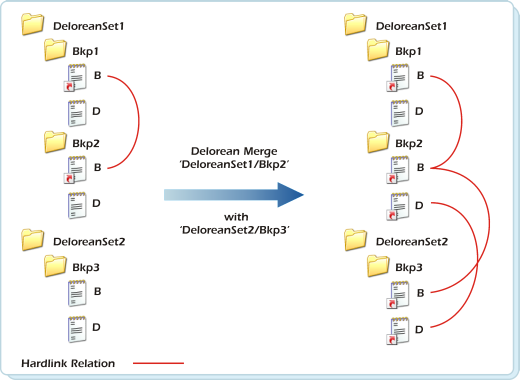
The above example assumes two DeloreanSets. DeloreanSet1 contains 2 Backups and DeloreanSet2 contains 1 Backup. The DeloreanMerge operation hardlinks DeloreanSet2 into DeloreanSet1, so that DeloreanSet1 & DeloreanSet2 become one. e.g.:ln --merge x:\DeloreanSet1\bkp2 x:\DeloreanSet2\bkp3 In the above example the directory x:\DeloreanSet1\bkp2 is merged with x:\DeloreanSet2\bkp3.
Merged files are marked with the ° character in the log.
This option will not work on Network drives. |
|||||||||||||||||||||||||||||||||||||||||||||||||||||||||||||||||||||||||||||||||||||||||||||||||||||||||||||||||||||||||||||||||||||||||||||||||||||||||||||||||||||||||||||||||||||||||||||||||||
|
--mirror Smart Mirror |
Smart Mirror is very similar to Smart Copy and not only copies but
synchronises the folder Source to Destination:
Smart Mirror takes care of Hardlink Relations, restores Inner Junctions or Inner Symbolic links or when issued unrolls or splices Outer Junctions or Outer Symbolic Links. The time stamps for LastWriteTime, CreationTime and LastAccessTime of files/folders/junctions/symbolic links are also restored at the corresponding destination locations during SmartMirror. Different Items means: Either the file size changed, or the LastWriteTime changed. e.g.:ln --mirror x:\source x:\destination In the above example the directory x:\source is mirrored to x:\destination, and all symbolic links and junctions within x:\destination are updated with respect to their new locations under x:\destination. The filters of --includeXXX or --excludeXXX are applied in the source and the destination location See also the note on quotes.
Shell Integration |
|||||||||||||||||||||||||||||||||||||||||||||||||||||||||||||||||||||||||||||||||||||||||||||||||||||||||||||||||||||||||||||||||||||||||||||||||||||||||||||||||||||||||||||||||||||||||||||||||||
|
--mirror --symbolic Symbolic Clone Mirror |
The Clone Mirror function is a combination of Smart Mirror and
SmartClone. Basically it creates a Symbolic Link Clone from Source to Destination directory,
but also synchronises the folder Source to Destination:
Clone Mirror takes care of Inner Junctions, Inner Symbolic links or when
issued unrolls or splices Outer Junctions or Outer Symbolic Links. ln --symbolic --mirror x:\source x:\destination In the above example the directory x:\source is cloned to x:\destination, and all symbolic links and junctions within x:\destination are updated with respect to their new locations under x:\destination. Furthermore symbolic links, which are in the Destination, but have no longer a target in the Source, are deleted from the Destination. See also the note on quotes. |
|||||||||||||||||||||||||||||||||||||||||||||||||||||||||||||||||||||||||||||||||||||||||||||||||||||||||||||||||||||||||||||||||||||||||||||||||||||||||||||||||||||||||||||||||||||||||||||||||||
|
--mirror --recursive Hardlink Clone Mirror |
The Hardlink Clone Mirror function is a combination of Smart Mirror and
SmartClone. Basically it creates a Hardlink Clone from Source to Destination directory,
but also synchronises the folder Source to Destination:
Hardlink Clone Mirror takes care of Inner Junctions, Inner Symbolic links or when
issued unrolls or splices Outer Junctions or Outer Symbolic Links. ln --recursive --mirror x:\source x:\destination In the above example the directory x:\source is cloned to x:\destination, and all symbolic links and junctions within x:\destination are updated with respect to their new locations under x:\destination. Furthermore files, which are in the Destination, but are no longer in the Source, are deleted from the Destination. See also the note on quotes. |
|||||||||||||||||||||||||||||||||||||||||||||||||||||||||||||||||||||||||||||||||||||||||||||||||||||||||||||||||||||||||||||||||||||||||||||||||||||||||||||||||||||||||||||||||||||||||||||||||||
|
--move Smart Move |
Smart Move enables folders with junctions and symbolic links beneath to be renamed, and the junctions and symbolic links' targets are updated below that folder. Without Smart Move renaming of such folders would end in dangling junctions and symbolic links. With junctions or symbolic link directories it behaves as follows: 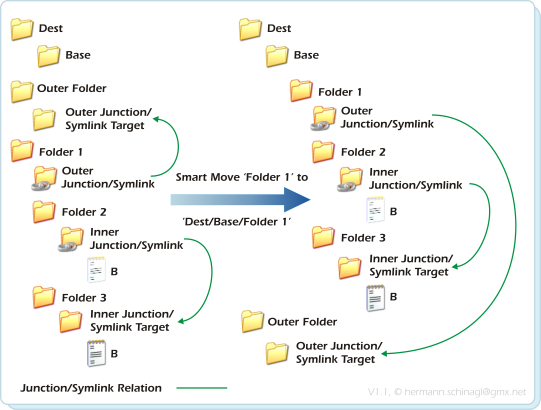
By closely looking at the above picture one can find three different types of folders/junctions:
e.g.: ln --move x:\dir\dir2 x:\dir\newdir In the above example the directory x:\dir\dir2 is moved to x:\dir\newdir, and all symbolic links and junctions within x:\dir\dir2 are updated with respect to their new locations under x:\dir\newdir. See also the note on quotes.
Shell Integration |
|||||||||||||||||||||||||||||||||||||||||||||||||||||||||||||||||||||||||||||||||||||||||||||||||||||||||||||||||||||||||||||||||||||||||||||||||||||||||||||||||||||||||||||||||||||||||||||||||||
|
--noads Skip ADS |
The --noads option tells ln.exe not to copy Alternative Data Streams (ADS) of files and directories. This option can be useful if the destination supports NTFS, but can not deal with ADS, which happens on certain NAS drives. ln --noads --copy src dest In the above example the files are copied normally from src to dest except for ADS. |
|||||||||||||||||||||||||||||||||||||||||||||||||||||||||||||||||||||||||||||||||||||||||||||||||||||||||||||||||||||||||||||||||||||||||||||||||||||||||||||||||||||||||||||||||||||||||||||||||||
|
|
||||||||||||||||||||||||||||||||||||||||||||||||||||||||||||||||||||||||||||||||||||||||||||||||||||||||||||||||||||||||||||||||||||||||||||||||||||||||||||||||||||||||||||||||||||||||||||||||||||
|
--noea Skip EA Records |
The --noea option tells ln.exe not to copy EA Records of files and directories. This option can be useful if the destination supports NTFS, but can not deal with EA Records, which happens on certain NAS drives. ln --noea --copy src dest In the above example the files are copied normally from src to dest except for EA Records. |
|||||||||||||||||||||||||||||||||||||||||||||||||||||||||||||||||||||||||||||||||||||||||||||||||||||||||||||||||||||||||||||||||||||||||||||||||||||||||||||||||||||||||||||||||||||||||||||||||||
|
|
||||||||||||||||||||||||||||||||||||||||||||||||||||||||||||||||||||||||||||||||||||||||||||||||||||||||||||||||||||||||||||||||||||||||||||||||||||||||||||||||||||||||||||||||||||||||||||||||||||
|
--output Redirect Output |
The output of ln.exe can be redirected to files via this commandline option ln --output filename --copy src dest In the above example all output is redirected to filename |
|||||||||||||||||||||||||||||||||||||||||||||||||||||||||||||||||||||||||||||||||||||||||||||||||||||||||||||||||||||||||||||||||||||||||||||||||||||||||||||||||||||||||||||||||||||||||||||||||||
|
|
||||||||||||||||||||||||||||||||||||||||||||||||||||||||||||||||||||||||||||||||||||||||||||||||||||||||||||||||||||||||||||||||||||||||||||||||||||||||||||||||||||||||||||||||||||||||||||||||||||
|
--probefs |
This option of ln.exe returns the type of the filesystem. e.g NTFS, FAT, ReFs ... ln --probefs x:\ ln --probefs \\server\share\path |
|||||||||||||||||||||||||||||||||||||||||||||||||||||||||||||||||||||||||||||||||||||||||||||||||||||||||||||||||||||||||||||||||||||||||||||||||||||||||||||||||||||||||||||||||||||||||||||||||||
|
|
||||||||||||||||||||||||||||||||||||||||||||||||||||||||||||||||||||||||||||||||||||||||||||||||||||||||||||||||||||||||||||||||||||||||||||||||||||||||||||||||||||||||||||||||||||||||||||||||||||
|
--progress |
This option is a modifier and shows the progress during operations like --mirror, --copy, --clone, --delorean ln --progress --output foo.txt --copy src dest The --progress option writes the progress only onto the console and is best used with --ouput. The --output option collects all important logging in a logfile, while the progress is written onto the console. e.g.: Enumerating ... \ Copying ... 12%, Time left: 00:00:42 The percentage progress is displayed as well as the estimated time left. |
|||||||||||||||||||||||||||||||||||||||||||||||||||||||||||||||||||||||||||||||||||||||||||||||||||||||||||||||||||||||||||||||||||||||||||||||||||||||||||||||||||||||||||||||||||||||||||||||||||
|
|
||||||||||||||||||||||||||||||||||||||||||||||||||||||||||||||||||||||||||||||||||||||||||||||||||||||||||||||||||||||||||||||||||||||||||||||||||||||||||||||||||||||||||||||||||||||||||||||||||||
|
--quiet specify log level |
The amount of output during various operations can be controlled via the --quiet switch: ln --quiet ...
The --quiet option without arguments totally disables any output during ln.exe' operations.
ln --quiet 2 ... In the above example only changes are shown. |
|||||||||||||||||||||||||||||||||||||||||||||||||||||||||||||||||||||||||||||||||||||||||||||||||||||||||||||||||||||||||||||||||||||||||||||||||||||||||||||||||||||||||||||||||||||||||||||||||||
|
|
||||||||||||||||||||||||||||||||||||||||||||||||||||||||||||||||||||||||||||||||||||||||||||||||||||||||||||||||||||||||||||||||||||||||||||||||||||||||||||||||||||||||||||||||||||||||||||||||||||
|
--recursive Smart Clone |
ln.exe can recursively hardlink all files found below a given directory location to a newly created directory structure under a different location. In other words this means, the given directory structure is rebuilt under a different location, and all files from the given directory structure are hardlinked to the newly generated structure. Something like a xcopy, but the files are hardlinked and not copied: 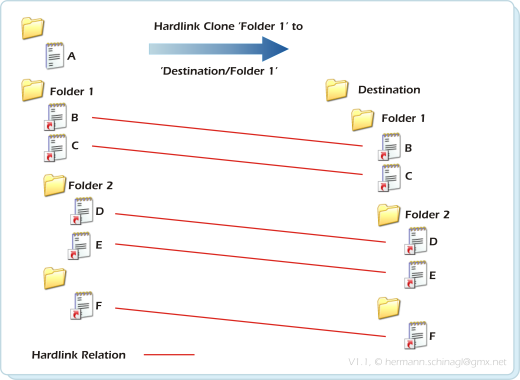
e.g.: ln --recursive x:\dir\dir2 x:\dir\newdirIn the above example the directories below x:\dir\dir2 are rebuilt below x:\dir\newdir, and all files from x:\dir\dir2 are hardlinked to their corresponding locations under x:\dir\newdir. A folder tree might also contain Junctions or Symbolic Links. The clone process recreates inner junction/symbolic links at the destination location very similar to the way SmartCopy does. 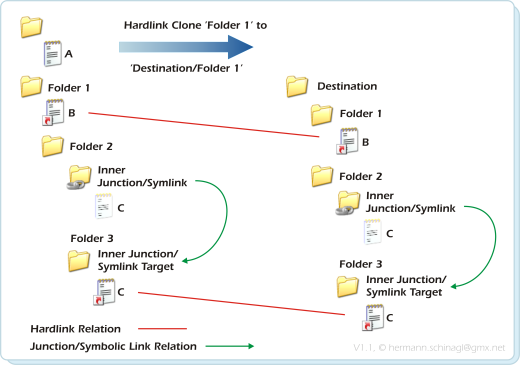
Outer Junctions/Symbolic links are recreated with respect to the specified Outer Junction/Symbolic Link handling. e.g. ln --unroll --recursive x:\dir\dir2 x:\dir\newdirIn the above example the directories below x:\dir\dir2 are rebuilt below x:\dir\newdir, all files from x:\dir\dir2 are hardlinked to their corresponding locations under x:\dir\newdir and all junctions/symbolic links are unrolled. The cloning process is also available with Symbolic Links instead of Hardlinks. 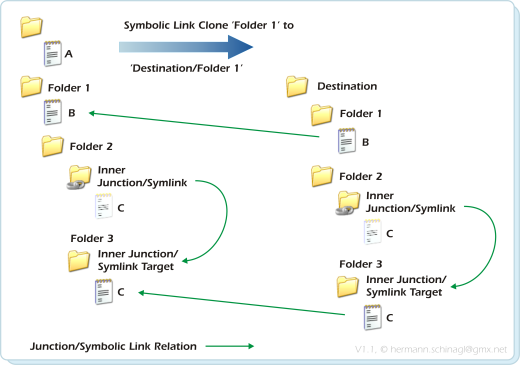
Output See Output among Delorean Copy for a detailed description of HardlinkClone's Output
Shell Integration |
|||||||||||||||||||||||||||||||||||||||||||||||||||||||||||||||||||||||||||||||||||||||||||||||||||||||||||||||||||||||||||||||||||||||||||||||||||||||||||||||||||||||||||||||||||||||||||||||||||
|
|
||||||||||||||||||||||||||||||||||||||||||||||||||||||||||||||||||||||||||||||||||||||||||||||||||||||||||||||||||||||||||||||||||||||||||||||||||||||||||||||||||||||||||||||||||||||||||||||||||||
|
--skipfiles |
This option is a modifier to Smart Copy, Smart Mirror, Delorean Copy, or Clone, so that only directories symlinks and junctions are processed. The files are ommitted with this modifier used. ln --skipfiles --copy source destination |
|||||||||||||||||||||||||||||||||||||||||||||||||||||||||||||||||||||||||||||||||||||||||||||||||||||||||||||||||||||||||||||||||||||||||||||||||||||||||||||||||||||||||||||||||||||||||||||||||||
|
|
||||||||||||||||||||||||||||||||||||||||||||||||||||||||||||||||||||||||||||||||||||||||||||||||||||||||||||||||||||||||||||||||||||||||||||||||||||||||||||||||||||||||||||||||||||||||||||||||||||
|
--smartrename Smart Rename |
Smart Rename is very similar to Smart Move, but only renames junctions/symbolic links references below a given folder. ln --smartrename x:\dir\dir2 x:\dir\newdir In the above example the symbolic links/junction references below x:\dir\dir2 are renamed to x:\dir\newdir. This leaves x:\dir\dir2 with dangling symbolic links/junction, but this feature is useful if someone wants to migrate a whole disk to another physical media. ln --copy x:\ y:\ unmount disk from x:\ mount disk under y:\ ln --smartrename y:\ x:\ unmount disk from y:\ mount disk under x:\ See also the note on quotes |
|||||||||||||||||||||||||||||||||||||||||||||||||||||||||||||||||||||||||||||||||||||||||||||||||||||||||||||||||||||||||||||||||||||||||||||||||||||||||||||||||||||||||||||||||||||||||||||||||||
|
--source Multiple Source |
Multpiple source locations can be specified for SmartCopy, Clone and Delorean Copy. If there are junctions/symlinks between these source locations, they are handled as inner junctions/symlinks, because all source locations are dealt with as a common root. 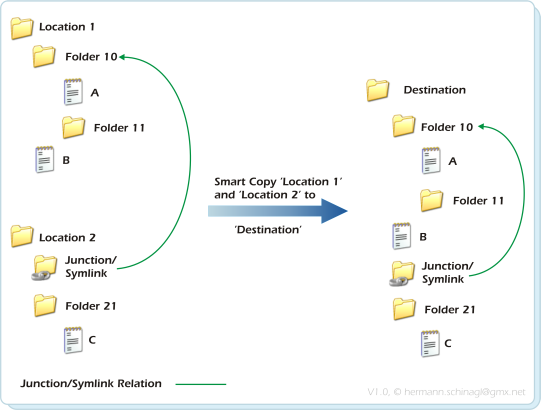
In the above example Location 1 and Location 2 are copied to Destination. Location2/Junction_Symlink is treated as inner junctions to Location1/Folder 10 in the source, and that's why Destination/Junction_Symlink points to Destination/Folder 10 in the Destination. The objective behind this is to treat all junctions/symlinks as inner junctions/symlinks as long as they are in the set of source folders.
Merging into one destination
The above command copies all content from "c:\Location 2" and "c:\Location 1" to c:\Destination, but does not create a "c:\Destination\Location 2" and a "c:\Destination\Location 1".
Keeping several destinations
Mirror to several destinations Make sure that c:\Destination already exists |
|||||||||||||||||||||||||||||||||||||||||||||||||||||||||||||||||||||||||||||||||||||||||||||||||||||||||||||||||||||||||||||||||||||||||||||||||||||||||||||||||||||||||||||||||||||||||||||||||||
|
--supportfs |
There are a lot of filesystems out by third party vendors nowadays, which support hardlinks, symlinks...
In order to provide the ln.exe functionality on that drives, the supported filesystems can be given: Configuring your favourite filesystem to be recognized by ln.exe is on your own risk. Basically ln.exe would do all operations to the configured filesystems, which it does to NTFS. So make sure your filesystem supports the same primitives as NTFS does, otherwise certain operations will fail. |
|||||||||||||||||||||||||||||||||||||||||||||||||||||||||||||||||||||||||||||||||||||||||||||||||||||||||||||||||||||||||||||||||||||||||||||||||||||||||||||||||||||||||||||||||||||||||||||||||||
|
|
||||||||||||||||||||||||||||||||||||||||||||||||||||||||||||||||||||||||||||||||||||||||||||||||||||||||||||||||||||||||||||||||||||||||||||||||||||||||||||||||||||||||||||||||||||||||||||||||||||
|
--symbolic Symbolic Links |
When used under Vista or Windows7/8 ln.exe can create symbolic links ln --symbolic Sourcefile.txt SymbolicLinkToSourceFile.txtIn the above example a symbolic link SymbolicLinkToSourceFile.txt is created which points to sourcefile.txt. ln --symbolic Sourcefile.txt DestinationDirectory In the above example a symbolic link DestinationDirectory\Sourcefile.txt is created which points to Sourcefile.txt. ln --symbolic SourceDirectory SymbolicLinkToSourceDirectory In the above example a symbolic link SymbolicLinkToSourceDirectory is created which points to SourceDirectory. ln --symbolic SourceDirectory DestinationDirectory\ In the above example a symbolic link DestinationDirectory\SourceDirectory is created which points to SourceDirectory. A traling backslash is the trigger for this to work. ln.exe can also only show the target of a symbolic link ln --symbolic SymbolicLinkToSourceFile.txtln.exe can also symbolically link to volume-guid targets: ln --symbolic \\?\Volume{f6c8b244-1ce4-11e0-a607-005056c00008}\tmp SymbolicLinkNameIn the above example the symbolic link SymbolicLinkName is created to a volume-guid target. This is useful if you are either out of drive letters, or just want to have a link to a directory on a mounted drive regardless with of which drive-letter it is mounted on. To find out the available volume-guids use the mountvol.exe command. Please note that symbolic links can only be successfully created from an administrative command prompt. ln.exe will fail on symbolic links from a normal command prompt! |
|||||||||||||||||||||||||||||||||||||||||||||||||||||||||||||||||||||||||||||||||||||||||||||||||||||||||||||||||||||||||||||||||||||||||||||||||||||||||||||||||||||||||||||||||||||||||||||||||||
|
|
||||||||||||||||||||||||||||||||||||||||||||||||||||||||||||||||||||||||||||||||||||||||||||||||||||||||||||||||||||||||||||||||||||||||||||||||||||||||||||||||||||||||||||||||||||||||||||||||||||
|
--timetolerance |
During --mirror and --delorean it is sometimes useful to not have an exact timestamp comparison between source and destination, but kind of a fuzzy comparison, because the systemtime of NAS drives is not exactly synced with the host. To overcome this ln.exe has a --timetolerance switch to specify a value in milliseconds ln --timetolerance 2000 --mirror source destination |
|||||||||||||||||||||||||||||||||||||||||||||||||||||||||||||||||||||||||||||||||||||||||||||||||||||||||||||||||||||||||||||||||||||||||||||||||||||||||||||||||||||||||||||||||||||||||||||||||||
|
|
||||||||||||||||||||||||||||||||||||||||||||||||||||||||||||||||||||||||||||||||||||||||||||||||||||||||||||||||||||||||||||||||||||||||||||||||||||||||||||||||||||||||||||||||||||||||||||||||||||
|
--traditional Traditional mode |
Some NAS boxes only support a very outdated version of the SMB protocol. SMB is used when network drives are connected. This old version of SMB in certain situations does not support the fast enumeration methods of ln.exe, which causes ln.exe to simply do nothing in SmartXXX functions. To overcome this ln.exe has a --traditional switch, which forces ln.exe to enumerate files the old, but a little slower way. ln --traditional --copy source destination ... |
|||||||||||||||||||||||||||||||||||||||||||||||||||||||||||||||||||||||||||||||||||||||||||||||||||||||||||||||||||||||||||||||||||||||||||||||||||||||||||||||||||||||||||||||||||||||||||||||||||
|
|
||||||||||||||||||||||||||||||||||||||||||||||||||||||||||||||||||||||||||||||||||||||||||||||||||||||||||||||||||||||||||||||||||||||||||||||||||||||||||||||||||||||||||||||||||||||||||||||||||||
|
--truesize Size calculation |
Prints the true space used taking into account hardlinks. This means that a file with a size of e.g 12345kb and a reference count 5, will be listed with 61725kb by explorer, but indeed it only uses 12345kb, because it has a refcount of 5. ln --truesize pathreturns the following output
The --truesize option does not return info on alternate data streams right now. |
|||||||||||||||||||||||||||||||||||||||||||||||||||||||||||||||||||||||||||||||||||||||||||||||||||||||||||||||||||||||||||||||||||||||||||||||||||||||||||||||||||||||||||||||||||||||||||||||||||
|
|
||||||||||||||||||||||||||||||||||||||||||||||||||||||||||||||||||||||||||||||||||||||||||||||||||||||||||||||||||||||||||||||||||||||||||||||||||||||||||||||||||||||||||||||||||||||||||||||||||||
|
--1023safe Hardlink Limit Safe |
NTFS puts a 1023 limit on the number of hardlinks a file can have. In most cases this is not a problem,
but if many delorean copies are stored, and files are hardlinked within a delorean copy too, it might
turn out that the limit of 1023 hardlinks is reached and the error ERROR_TOO_MANY_LINKS is thrown.
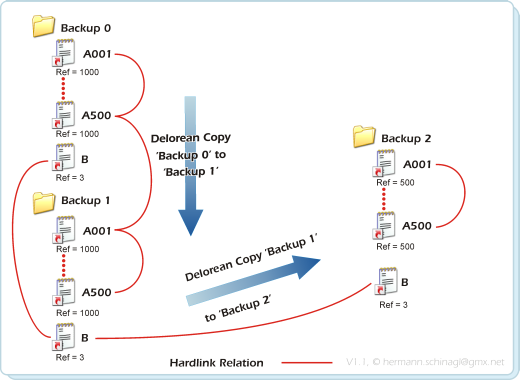
In the above example a setup is shown, which has already applied three iterations of delorean copy:
|
|||||||||||||||||||||||||||||||||||||||||||||||||||||||||||||||||||||||||||||||||||||||||||||||||||||||||||||||||||||||||||||||||||||||||||||||||||||||||||||||||||||||||||||||||||||||||||||||||||
support
A local path can be a UNC name, which maybe reached from outside the computer via a share.
Sometimes it is necessary to use UNC names to refer to local paths.
ln resolves local UNC names to local path names and does its job on those resolved path names. e.g.:
ln \\local_computer\local_share\sourcefile.txt x:\dir_on_local_computer\destination.txt
In the above example there is a share called local_share on your local_computer which contains a file sourcefile.txt. ln resolves the UNC name to a local path if possible, and creates a link between the resolved location and destination.txt in x:\dir_on_local_computer.
ln --copy \\server\share\source \\server\share\destination
In the above example there is a share called share on your server which contains a directory source. ln.exe copies over the content from the source UNC path to the destination UNC path and preserves hardlink structures.
ln --delorean \\server\share\source \\server\share\destination \\server\share\backup
UNC Path are also supported for --delorean and preserves hardlink structures.
ln --recursive \\server\share\source \\server\share\destination
UNC Path are also supported for --recursive so that hardlink clones are created.
around path
If there are blanks in the argument path to ln.exe, the pathname has to be put inside quotes, e.g.
ln --copy "x:\dir with blanks\dir2" "y:\destination with blanks\newdir"Please make sure not to end a quoted path with \ because ln.exe treats this as escaping of the quote (\") and can not parse the command line.
With the subst.exe command one can create driveletters, which point to a certain path on a NTFS volume. This means that two different driveletters in the end might resolve to locations on the same NTFS volume.
ln.exe checks these situations when it comes to allow the creation of hardlinks, and as a consequence allows the creation of hardlinks among different logical drives if they resolve to the same NTFS volume.
Shadow Copy (Volume Snapshot Service or Volume Shadow Copy Service or VSS), is a technology included in Microsoft Windows that allows taking manual or automatic backup copies or snapshots of data, even if it has a lock, on a specific volume at a specific point in time over regular intervals.
There are two ways to achieve this:
The way with a drive-letter
ln.exe can be used to create consistent copies from a snapshot: 4 files are needed: vshadow.exe, ln.exe, dosdev.exe, vss-exec.cmd. Place the files where you want, but vshadow.exe and dosdev.exe need to be in the path.
A backup of an entire e.g. E:\ or parts from it can be accomplished with this command:
vshadow.exe -script=vss-setvar.cmd -exec=vss-exec.cmd e:
The -script=vss-setvar.cmd is a command line argument to vshadow.exe that gives the shadow copy an identifier string so that a drive letter can be assigned to it - which allows ln.exe to access the files.
The -script=vss-exec.cmd is a command line argument to vshadow.exe that contains the name of a file, which is executed within vshadow.exe and does the very backup job:
REM
REM called from vshadow via commandline e.g
REM
REM vshadow.exe -script=vss-setvar.cmd -exec=vss-exec.cmd e:
REM
REM vss-setvar.cmd is generated by vshadow.exe
REM
call vss-setvar.cmd
REM assign a DOS device to the created snapshot
REM
dosdev x: %shadow_device_1%
REM run the intended copy job
REM
set LN=c:\tools\ln.exe
%LN% --copy x:\path e:\backup
REM finally remove the drive letter
REM
dosdev -r -d x:
The event process is this:
The vshadow.exe program creates a shadow copy, and then calls the on the fly generated vss-setvar.cmd that assigns a variable to the shadow copy. Then the given batch file vss-exec.cmd is executed within vshadow.exe. Dosdev.exe first assigns the drive letter x: to the shadow copy. ln.exe can be called now with whatever parameters are necessary at this time. By the end dosdev.exe removes the drive letter and vshadow.exe is allowed to exit.
The vshadow.exe generates an e.g vss-setvar.cmd:
@echo.
@echo [This script is generated by VSHADOW.EXE for the shadow set {95a6cd9f-bc45-43b8-8722-6c25ec06fe94}]
@echo.
SET SHADOW_SET_ID={95a6cd9f-bc45-43b8-8722-6c25ec06fe94}
SET SHADOW_ID_1={e38169c1-6aa7-4843-ac50-4c7b652397b3}
SET SHADOW_DEVICE_1=\\?\GLOBALROOT\Device\HarddiskVolumeShadowCopy1
There are different versions of vshadow.exe (32bit, 64bit, workstation, and server). You can download them from here in the same way as for dosdev
The way with an UNC share
If for some reason no drive letter is available, a similar strategy as above can be applied via an UNC share:
REM
REM General settings, please adjust to your needs!
REM
set SRC_DRIVE=e:
set SRC_PATH=tmp\src
set DST_PATH=x:\bla\foo
set VSHADOW=vshadow.exe
set LN=ln.exe
REM Create a temporary name for the share, e.g. take the timestamp
REM
for /f "delims=" %%a in ('%LN% --datetime') do set VSS_SHARE=%%a
REM call vshadow to create a persistent shadow
REM
%VSHADOW% -p -script=vss-setvar.cmd %SRC_DRIVE%
REM vss-setvar.cmd has been generated by vshadow.exe
REM
call vss-setvar.cmd
REM Create the temporary share, and specify a path relative to %SRC_DRIVE
REM via %SRC_PATH%. %VSS_SHARE% will then point to %SRC_DRIVE\%SRC_PATH%
REM
%VSHADOW% -er=%shadow_id_1%,"%VSS_SHARE%","%SRC_PATH%"
REM Run the intended copy job
REM
%LN% --copy \\localhost\%VSS_SHARE% %DST_PATH%
REM Remove the share
REM
%VSHADOW% -ds=%SHADOW_ID_1%
The vss_unc.cmd script can be found here.
The vss_unc.cmd must be adapted with the proper SRC_DRIVE, SRC_PATH, DST_PATH in line 3 to 6 and issuing
vss_unc.cmd
will do the job.
The Raw Way
Directly accessing snapshots from Windows namespace is also possible and the most cleanest and meanest way:
REM
REM General settings, please adjust to your needs!
REM
set SRC_DRIVE=e:
set SRC_PATH=tmp\src
set DST_PATH=x:\bla\foo
set VSHADOW=vshadow.exe
set LN=ln.exe
REM call vshadow to create a persistent shadow
REM
%VSHADOW% -p -script=vss-setvar.cmd %SRC_DRIVE%
REM vss-setvar.cmd has been generated by vshadow.exe
REM
call vss-setvar.cmd
REM Run the intended copy job
REM
%LN% --copy %SHADOW_DEVICE_1%\%SRC_PATH% %DST_PATH%
REM Remove the shadow
REM
%VSHADOW% -ds=%SHADOW_ID_1%
The vss_raw.cmd script can be found here.
The vss_raw.cmd must be adapted with the proper SRC_DRIVE, SRC_PATH, DST_PATH in line 3 to 6 and issuing
vss_raw.cmd
will do the job.
Please also see the anchor option, which enables ln.exe to also copy junctions and absolute symbolic links properly when within snapshots, either mapped as drives or UNC path.Copying a full drive via snapshots
REM
REM General settings, please adjust to your needs!
REM
set SRC_DRIVE=e:
set DST_PATH=x:\bla\foo
set VSHADOW=vshadow.exe
set LN=ln.exe
REM call vshadow to create a persistent shadow
REM
%VSHADOW% -p -script=vss-setvar.cmd %SRC_DRIVE%
REM vss-setvar.cmd has been generated by vshadow.exe
REM
call vss-setvar.cmd
REM Run the intended copy job
REM
%LN% --backup --anchor %SRC_DRIVE%\ --mirror %SHADOW_DEVICE_1% %DST_PATH%
REM Remove the shadow
REM
%VSHADOW% -ds=%SHADOW_ID_1%
The vss_drivecopy.cmd script can be found here.
The vss_drivecopy.cmd must be adapted with the proper SRC_DRIVE, DST_PATH in line 3 to 5 and issuing
vss_drivecopy.cmd
will do the job.
Ln.exe will mirror the content from %SHADOW_DEVICE_1% to %DST_PATH%, but it is important to note that the --anchor %SRC_DRIVE%\ will let all
inner junctions / symbolic links from %SHADOW_DEVICE_1% be also inner junctions / symbolic links in %DST_PATH%.
If this would be omitted all inner junctions / symbolic links from %SHADOW_DEVICE_1% would be outer junctions / symbolic links and depending on the
option would be cropped, spliced or unrolled.
Please check the the anchor option and the destination option for a indepth explanation.
ln.exe can handle Deep Paths which are longer than 256 characters. This is usefully especially in the --copy, -delorean, --move, --mirror, --recursive mode. Deep Path Support is tested for the whole ln.exe functionality.
Volume{GUID} Path
and GLOBALROOT
All --copy, -delorean, --move, --mirror, --recursive commands can handle \\?\Volume{GUID} or \\?GLOBALROOT\Device\HarddiskVolume as path for operations:
ln --copy SrcDir \\?\Volume{97410ad7-54ec-11e3-97ab-005056c00008}\
ln --copy SrcDir \\?\GLOBALROOT\Device\HarddiskVolumeShadowCopy\
The above example copies files onto a formatted disk which is not mounted. To find out which volumes are
available in the system use mountvol.exe from a command prompt. Please make sure that the root of a volume has
a trailing slash, e.g. \\?\Volume{GUID}\, but a normal path specified has not, e.g.: \\?\Volume{GUID}\MyPath\dir
Accessing like this is useful when providing volumes for snapshots.
Technically it seems that NTFS5 even as shipped with WindowsXP has always supported symbolic links, but the functionality was not available for user mode applications, and even not for the upper layers of ntfs.sys
BUT: There are filter drivers available from Masatoshi Kimura for WindowsXP, which enable symbolic links under XP. These drivers can be downloaded from his home page for 64 bit and for 32 bit. The sources are also available.
Installation of these drivers is also quite simple.- Unpack the archive for your plattform,
- Start the driver via executing 'senable.exe install' from the command prompt.
If you want to stop the driver, execute from a command prompt 'senable.exe delete'
ln.exe enables its symbolic link functions even when running WindowsXP, if it finds this driver installed.
But unfortunatley this driver has a few limitations, which in 99% of the use cases are not a problem, but for completeness:- Symbolic links, which have been created with the symbolic link driver installed, can not be copied/used wihtout the symbolic link driver.
- Symbolic links can be created on mapped network drives or UNC pathes, but such a symbolic link can't be resolved aka followed.
powershell scripts
ln.exe can be used also from .bat or powershell scripts to accomplish various tasks:
Tower of Hanoi backup rotation scheme using Delorean Copies.
Creates a number of backups using the
Tower of Hanoi backup rotation scheme
Usage: DeloreanHanoi.bat SourceDir BackupDir [BackupSets]
Create timestamped DeLorean Copies as
Link Shellextension
does: 'data - yyyy-mm-dd hh-mm-ss', e.g 'MyData 2010-09-11 17-04-03'. Furthermore the number of backup-sets to be kept can be specified via the optional KeepEntries argument.
Usage: DeloreanCopy.bat SourceDir BackupDir [KeepEntries]
Create incremental backups from Powershell. Andreas Marktscheffel wrote some nice scripts
using ln.exe from Powershell to create incremental backups. Check his page.
Delete all hardlink siblings. This
.bat file uses the --list option to enumerate all hardlinks and successively deletes
them.
Usage: DeleteAllHardlinks.bat Filename
Determines whether a path is a junction, symlink or directory
and prints this on the command prompt. Courtesy of archimede0 at bluewin.ch
.
Usage: QueryPath.cmd Path
As a typical command line utility ln.exe exits with return values, so that it can be conveniently used from .bat files:
| 0 | Success. Everything is fine. |
|
|
|
| -1 |
The source directory given via command line parameters does not exist. This happens in recursive mode if the first command line argument is not there |
|
|
|
| -2 | The first command line argument in recursive mode specifies a directory, and it is not a directory, but some other kind of file. |
|
|
|
| -3 | The second command line argument specifies a file, or in recursive mode a directory, which already exists. |
|
|
|
| -4 | The destination directory could not be created in recursive mode. |
|
|
|
| -5 | The source file aka first command line parameter does not exist in normal mode. |
|
|
|
| -6 | The filesystem is not NTFS and does not support the creation of hardlinks. |
|
|
|
| -7 | For some unknown reason the creation of a hardlink failed. |
|
|
|
| -8 | Less arguments were given via command line. |
|
|
|
| -9 | Ln was not able to enumerate the files in a directory. This might happen in recursive or in hardlink enumeration mode if the file permissions for a directory are insufficient. |
|
|
|
| -10 | Too many hardlinks. The 1023 limit was exceeded |
|
|
|
| -11 | Not on same volume. Happens if you try to hardlink accross columes |
|
|
|
| -12 | Ln.exe was not able to create a SmartCopy. |
|
|
|
| -13 | No hardlink groups have been found. |
|
|
|
| -14 | Ln.exe was not able to create a clone. |
|
|
|
| -15 | Ln.exe failed in --mirror. |
|
|
|
| -16 | Ln.exe failed in --delorean. |
|
|
|
| -17 | Access denied |
|
|
|
| -18 | Operation not supported |
|
|
|
| -19 | Smartdelete failed |
|
|
|
| -20 | Target directory does not exist |
|
|
|
Hardlinks are a feature which are common to every Unix system, but are not directly available with NT4/W2K/WXP. It is a feature, which must be basically supported by the file system of the operating system.
So what are hardlinks in detail. It is common knowledge, that a file has a name and data associated to it. By opening the explorer, the NTFS filesystem of NT4/W2K/WXP can be browsed comfortably. There is a 1:1 relationship between the filename and the filedata, but this assumption does not hold for every filesystem.
Some filesystems, such as UFS, XFS, or NTFS have a N:1 relationship between filename and the filedata. So this means there is more than one directory entry for a file.
But how does one create those multiple entries? There is a command under Unix called ln, which creates many file entries for a file, so that there are many filenames or also called hardlinks for one filedata.
For each hardlink created, the filesystem increments a reference count stored with the filedata, so that the filedata stores how many filenames point to it. If a filename pointing to a hardlinked filedata gets deleted, the reference count stored with the filedata gets decremented by one. The filedata gets deleted when the reference count of the filedata decreases to zero.
Ln.exe can only be used under the supported platforms
HardLinks can only be created on NTFS volumes, under the supported platforms.
HardLinks can only be created within one NTFS volumes, and can not span across
NTFS volumes.
-
Q: I'm trying to use ln for a selective backup of the "Users" folder, and I'm having
trouble with the --includedir option, because nothing gets copied:
ln --includedir "*\\My Documents" --copy C:\Users X:\pc01-office\Users
A: The point is that explorer.exe fools you into believing, that directories like 'My Documents' exist, but they do not exist. Open a command prompt, change to c:\users and type 'dir'.
The files and directories you see now are very much different, than you can see in explorer.
So far so bad. ln.exe unfortunately only sees what the filesystem really has, and this is not e.g 'My Documents'. If you put a --includedir filter for '*My Documents*' it will not work, because in the NTFS namespace 'My Documents' is not there. -
Q: I only changed the attributes of a file, even the timestamp and content are the same, but --delorean copies the
file instead of linking to the old backupsets and just changing the attributes in the current backup set.
A: The files in the backup sets of --delorean are hardlinked if they are the same. NTFS provides one set of timestamps and attributes for all hardlink-siblings of a file, so if a file needs different attributes in a backup, it has to be copied.
-
Q: With ln.exe running under PowerShell the redirected output displays garbled characters for vd| :
A: Use the -enc OEM modifier when redirecting output as below in PowerShell:
ln.exe --copy src dest | out-file logfile.txt -enc OEM
-
Q:
I wanted to recover a damaged (but still readable !!) NTFS volume whereas CHKDSK was unable to repair it, so I decided to
use ln.exe for copying the whole disk to a newly formatted volume. This worked well, the volume has been able to boot,
but the junctions were lost. Why?
A: Junctions contain absolute path to refer their target. ln.exe tries to restore junctions relations in the destination during copy by comparing the path where the junction resides in the source and the path where the junctions in the source points to. If it is a inner junction, it gets restored in the destination, else cropped.
So if you recover a disk, you- either mounted it to its original drive letter, because the junctions on this disk still refer to locations where it was originally mounted. ln.exe assumes now that this is an outer junction, and thus crops the junctions.
- or go the way with the option.
The same happens if a drive was mapped as a snapshot, and is available under anything else than its original location. E.g. a drive c:\ mapped as \\localhost\vss_share via a snapshot will also loose junction relations during e.g. copy: ln.exe --copy \\localhost\vss_share\source x:\dest, or use the option.
-
Q:
On Windows Server 2012 I get messages about invalid reparse points. Why?
A: Windows Server 2012 has a deduping feature , which is implemented via an undocumented Reparse Point. ln.exe can not handle copying this reparse point, but adding the --unroll option to the command line will copy the files referenced by the reparse point.
| November 26, 2022 |
Version 2.9.3.4
|
| March 31, 2020 |
Version 2.9.2.8
|
| March 12, 2019 |
Version 2.8.7.4
|
| May 21, 2018 |
Version 2.8.7.3
|
| May 15, 2016 |
Version 2.8.7.2
|
| March 14, 2016 |
Version 2.8.6.9
|
| May 17, 2015 |
Version 2.8.6.5
|
| November 10, 2014 |
Version 2.8.6.0
|
| June 28, 2014 |
Version 2.8.5.3
|
| February 11, 2014 |
Version 2.8.1.0
|
| December 29, 2013 |
Version 2.7.5.9
|
| August 30, 2013 |
Version 2.7.5.3
|
| May 9th, 2013 |
Version 2.7.4.9
|
| June 24th, 2012 |
Version 2.7.2.0
|
| April 11th, 2012 |
Version 2.7.1.6
|
| May 15th 2011 |
Version 2.6.5.0
|
| April 17th 2011 |
Version 2.6.0.4
|
| December 20th 2010 |
Version 2.5.5.5
|
| October 3rd 2010 |
Version 2.4.0.0
|
| May 22nd 2010 |
Version 2.3.5.4
|
| March 9th 2009 |
Version 2.2.0.6 Enumerate hardlink siblings for Vista
& Wxp, Symbolic link support vista Under W2K it turned out, that CreateHardlink() from kernel32.dll with long pathnames (e.g. \\?\) was broken. |
| September 12th 2008 |
Version 1.997 Introduced the --copy
option Enabled the --symbolic option for Vista Introduced the --list option under Vista Added long (32k) path support |
| February 17th 2006 |
Version 1.810 Various small fixes related to commandline
parsing.
|
| February 18th 2005 |
Version 1.803 Fixed NT4 compatibility issues.
|
| February 7th 2005 |
Version 1.800 Fixed a few minor internal flaw related
to hardlink enumeration. Improved html documentation and added description for return
values.
|
| November 26th 2004 |
Version 1.711 decides between saturated and unsaturated
hardlinks when used with the --enum option. |
| November 18th 2004 |
Version 1.600 supports the enumerate functionality
via --enum switch |
| June 24th 2004 |
Version 1.502 released |
The 2.9.3.x version is a stable version.
Endre Both for being a great tester with endless patience and for excellent constructive feedback on features during development.
-
Ville Laurikari developed an exceptional free regular expression parser.
-
Kevin Locke developed a great command line parser,
called ultragetopt.
- This program is provided as is. See license.txt from this distribution for legal issues.
- ln.exe uses tre as the regular expression machine. See the tre license.
- ln.exe uses ultragetopt for command line parsing. See the ultragetopt license.
- ln.exe uses uint128 for large number calculations. See the uint128 license.
Bug reports, or feature requests send to Hermann Schinagl. .
ln.exe is and will be freeware, but if ln.exe was really helpful for you and saved lots of your time please think of donations either via PayPal
or by flattring me

or by sending me a gift certificate from
 .
.
or by donating bitcoins:

bc1q4hvevwrmnwt7jg8vws0v8xajywhffl4gwca5av

|
Win64 |
Simply download and extract
ln64.zip (2.30Mb)
to your favourite tools directory. All neccesary runtime dlls are already installed on your system, but if not grab it from
here.
|
Win32 |
Simply download and extract
ln.zip (2.29Mb)
to your favourite tools directory. All neccesary runtime dlls are already installed on your system, but if not grab it from
here.
|
|
Chocolatey Installation |
ln.exe can also be installed via chocolatey by issuing
choco install ln from a command prompt. Make sure you have chocolatey installed. |
|
Winget Installation |
The 64bit version of ln.exe can also be installed via winget by issuing
winget install HermannSchinagl.ln from a command prompt. Make sure you have winget installed. |
|
Static Win64 |
Simply download and extract
ln64static.zip (2.30Mb)
to your favourite tools directory. No need for runtime dlls, thus can run under WinPE
|
|
Static Win32 |
Simply download and extract
lnstatic.zip (2.30Mb)
to your favourite tools directory. No need for runtime dlls, thus can run under WinPE
|
|
|
|
Download
|
All Windows 2000/XP 32bit |
Please make sure that the necessary runtime .dlls vcredist_x86.exe for VS2005 SP1, version 6195/June 2011 (2.6 Mb) are installed on your system. Afterwards install the ln.zip (2.08Mb) |
|
All Windows 2000/XP 64bit |
Please make sure that the necessary runtime .dlls are vcredist_x64.exe for VS2005 SP1, version 6195/June 2011 (3.0 Mb) installed on your system. Afterwards install the ln64.zip (2.14Mb) |
|
All Windows Itanium |
The Itanium version is not supported anymore, but the last VS2005 based version 2.8.7.4 is kept for legacy.
Please make sure that the necessary runtime .dlls are
installed on your system.
vcredist_IA64.exe for VS2005 SP1, version 6195/June 2011 (6.3 Mb)
Afterwards install the
lnItanium.zip (2.40Mb)
|
|
Symbolic Link Driver for Windows XP |
The driver to enable even WindowsXP with
symbolic link functionality
is provided courtesy of Masatoshi Kimura. Yo ucan download the driver from his
homepage or from my site acting as a mirror.
Symbolic Drivers for WindowsXP 64 (86kb) [Mirror schinagl.priv.at] Symbolic Drivers for WindowsXP (86kb) [Original Location] Symbolic Drivers for WindowsXP (86kb) [Mirror schinagl.priv.at] Sources for Drivers (23kb) [Original Location] Sources for Drivers (23) [Mirror schinagl.priv.at] |